Why does macOS list Print Scout Configuration as an Intel-based app?
Nov 19, 2026
Problem
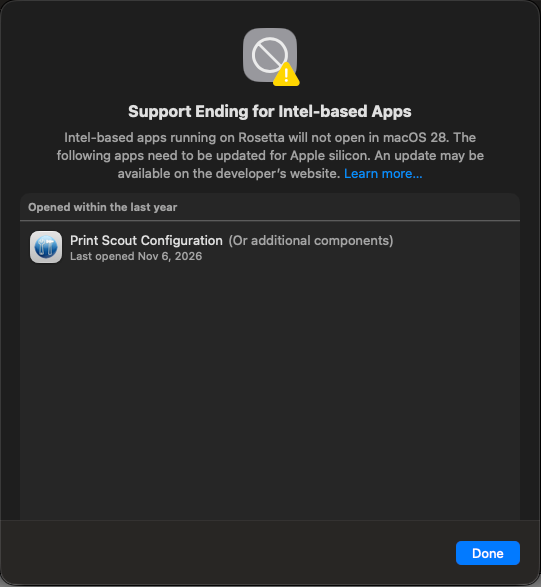
On an Apple silicon Mac, macOS may display a Support Ending for Intel-based Apps notice that lists Print Scout Configuration. You can find this notice under System Settings > General > About.
Under Opened within the last year, macOS may list the following entry, along with the date it was last opened:
Print Scout Configuration (Or additional components)
The notice states:
Intel-based apps running on Rosetta will not open in macOS 28. The following apps need to be updated for Apple silicon. An update may be available on the developer's website.
This can make it appear that Mac Print Scout depends on Rosetta and may stop working.
No action is required
Mac Print Scout runs natively on Apple silicon and does not require Rosetta.
The Print Scout installation includes two builds of the Print Scout Configuration Tool:
- Apple silicon (ARM64) for Apple silicon Macs
- Intel (x64) for Intel Macs
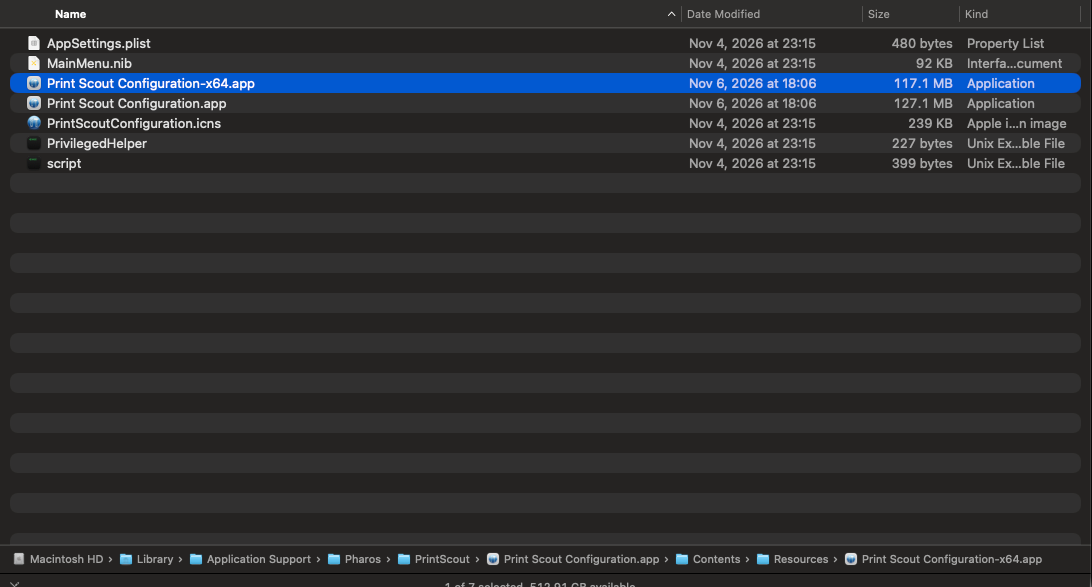
macOS detects the Intel build because it is present in the Print Scout installation and includes it in its application inventory. On an Apple silicon Mac, Print Scout uses the ARM64 build. The Intel build is not used.
Where the two builds are installed
Mac Print Scout 3.1.2 and later include both builds of the Configuration Tool in the following location:
/Library/Application Support/Pharos/PrintScout/Print Scout Configuration.app/Contents/Resources/
Each build has its own bundle identifier, which allows macOS to distinguish between them in authorization prompts.
Build | App name | Bundle identifier |
|---|---|---|
Apple silicon (ARM64) | Print Scout Configuration.app | com.pharos.ConfigToolApi |
Intel (x64) | Print Scout Configuration-x64.app | com.pharos.ConfigToolApi.x64 |
The following example shows both builds in the Print Scout installation.
Why are both builds installed?
The Print Scout Configuration Tool registers the Mac with Pharos Cloud and manages proxy and server communication.
Both builds are included so that the same signed installation package can support Apple silicon and Intel Macs. Keeping both builds intact also preserves the integrity of the signed and notarized application bundle.
Earlier Mac Print Scout 3.0.x installers removed the build that was not required by the Mac. However, modifying the notarized application bundle after installation could invalidate its code signature. In some wrapper .pkg and MDM deployments, including Microsoft Intune deployments, macOS Gatekeeper could then report that Print Scout Configuration was damaged and could not be opened.
Mac Print Scout 3.1.2 and later keep both builds installed to preserve the application signature. As a result, macOS may detect and report the Intel build even though it is not used on an Apple silicon Mac.
Do not delete the Intel build
Do not delete Print Scout Configuration-x64.app to remove the Intel-based app notice.
Removing part of the signed Configuration Tool can invalidate its code signature and cause macOS Gatekeeper to report that the application is damaged or cannot be opened.
For security and compliance teams
The Intel-based app notice does not mean that Print Scout requires Rosetta.
On an Apple silicon Mac:
- Print Scout uses the native ARM64 Configuration Tool.
- The Intel build remains installed as part of the signed application bundle.
- The Intel build is not launched during normal Print Scout operation.
To verify the code signature of the installed Configuration Tool, run the following command in Terminal:
codesign --verify --deep --strict -v "/Library/Application Support/Pharos/PrintScout/Print Scout Configuration.app"A valid installation returns:
/Library/Application Support/Pharos/PrintScout/Print Scout Configuration.app: valid on disk
/Library/Application Support/Pharos/PrintScout/Print Scout Configuration.app: satisfies its Designated Requirement
Which Mac Print Scout version should I use?
Use Mac Print Scout 3.1.2 or later.
Mac Print Scout 3.1.2 retains the package code signatures required for wrapper .pkg and MDM deployments through tools such as Microsoft Intune and Jamf. It also gives the ARM64 and Intel builds of the Configuration Tool separate bundle identifiers.
Upgrading does not remove the Intel-based app notice because both builds remain installed by design.
If you deploy Print Scout using Microsoft Intune or Jamf, update your application detection rules and version references to match the Print Scout version you are deploying.
Related issues
If you see "Print Scout Configuration is damaged and can't be opened", upgrade to Mac Print Scout 3.1.2 or later.